How to Resize Images for Google Business Profile (720x720px) — Free Tool
If your Google Business Profile photos look blurry, stretched, or low-quality, the problem is almost always the wrong image size.
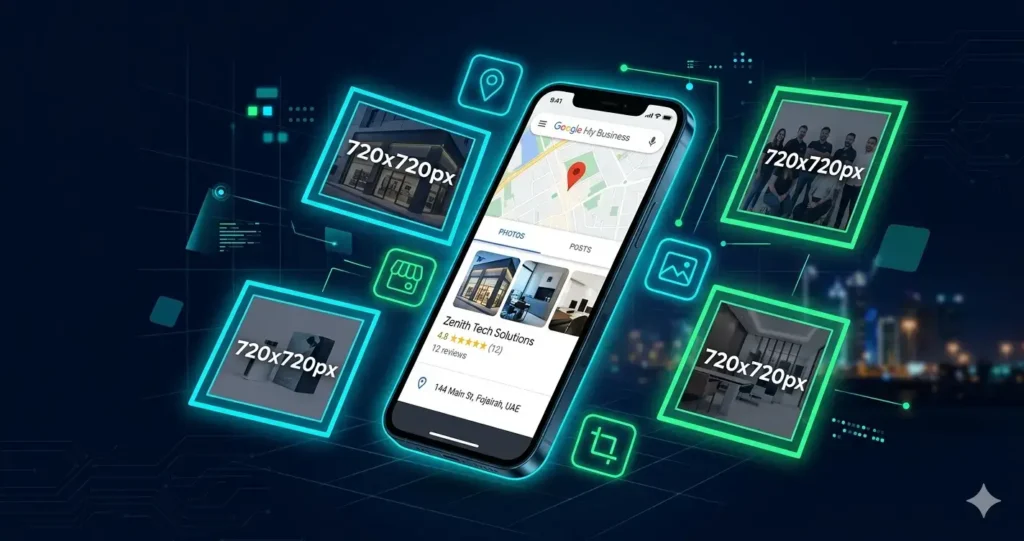
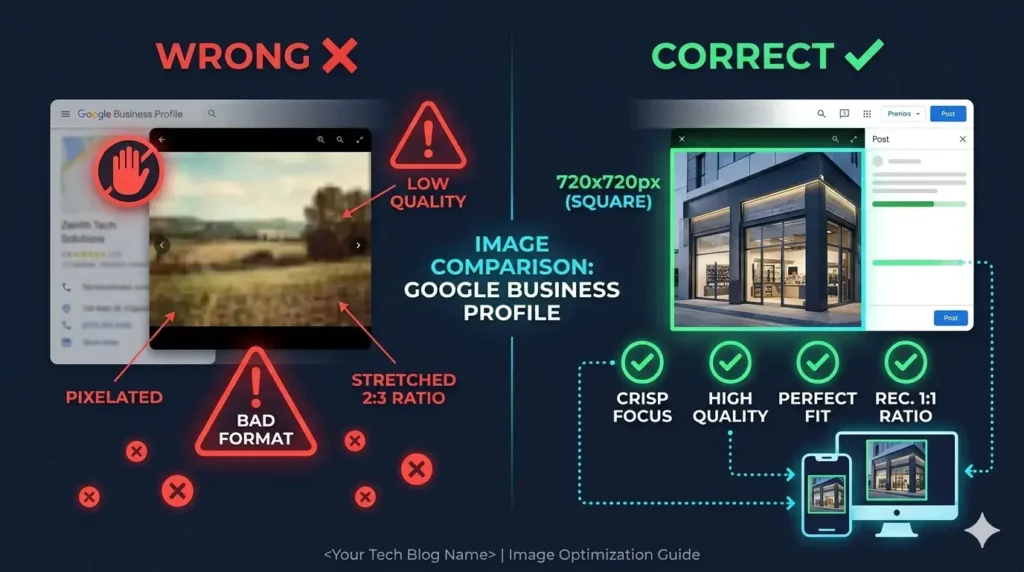
Google has a specific standard for GMB images: 720×720 pixels. Upload anything different, and Google’s system either crops, stretches, or compresses your photo, ruining its quality and hurting your local SEO rankings.
In this guide, you will learn exactly how to resize your images to the correct GMB size, why it matters for rankings, and how to do it for free in seconds.
What Is the Correct Image Size for Google Business Profile?
Google officially recommends the following image specifications for Google Business Profile (formerly Google My Business):
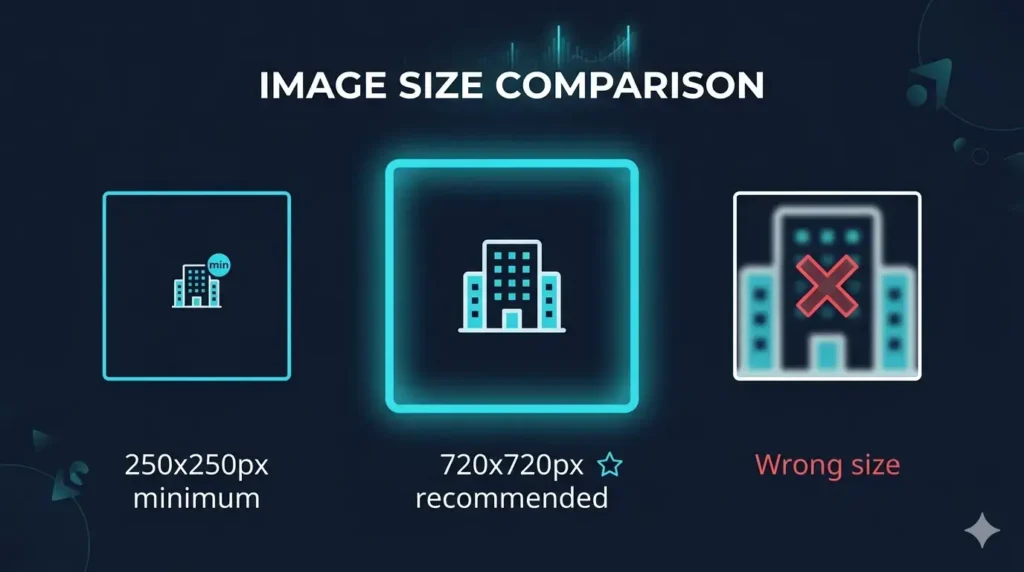
- Recommended size: 720 x 720 pixels
- Minimum size: 250 x 250 pixels
- Maximum file size: 5 MB
- Supported formats: JPG, PNG
- Recommended format: JPG (smaller file size, faster loading)
- The 720x720px square format is the most important standard. It applies to your profile photo, cover photo, and all business photos you upload.
- Pro Tip: Even though Google accepts images as small as 250x250px, always use 720x720px. Larger, high-quality images get better visibility in Google Maps and the Local 3-Pack.
Why Does GMB Image Size Matter for SEO?
Most business owners overlook image optimization. That is a mistake. Here is why the correct image size directly impacts your local search rankings:
Google Vision AI Scans Your Photos
Google uses Vision AI to analyze every image you upload to your Business Profile. This AI detects objects, identifies your services, and categorizes your business. When your image is properly sized at 720x720px, the AI can read it clearly and accurately. Blurry or incorrectly sized images confuse the algorithm.
2. Image Quality Affects Click-Through Rate
When your Business Profile appears in Google Maps or the Local 3-Pack, your photos are one of the first things potential customers see. High-quality, correctly sized photos get more clicks. More clicks signal to Google that your listing is relevant — which improves your ranking further.
3. Page Speed and Core Web Vitals
Oversized images slow down your listing and your website. Google measures page speed as a ranking factor through Core Web Vitals. A properly optimized 720x720px image loads faster than an unoptimized 4000x3000px original photo.
4. Consistent Branding Across Devices
A 720x720px image displays correctly on mobile, tablet, and desktop without cropping or distortion. Inconsistent visuals reduce trust and professionalism.
Method 1: Use QuickImage GMB Optimizer (Free, No Upload Required)
The fastest and most private way to resize your GMB images is with our free browser-based tool. Unlike other tools, your image never leaves your device — everything is processed locally in your browser.
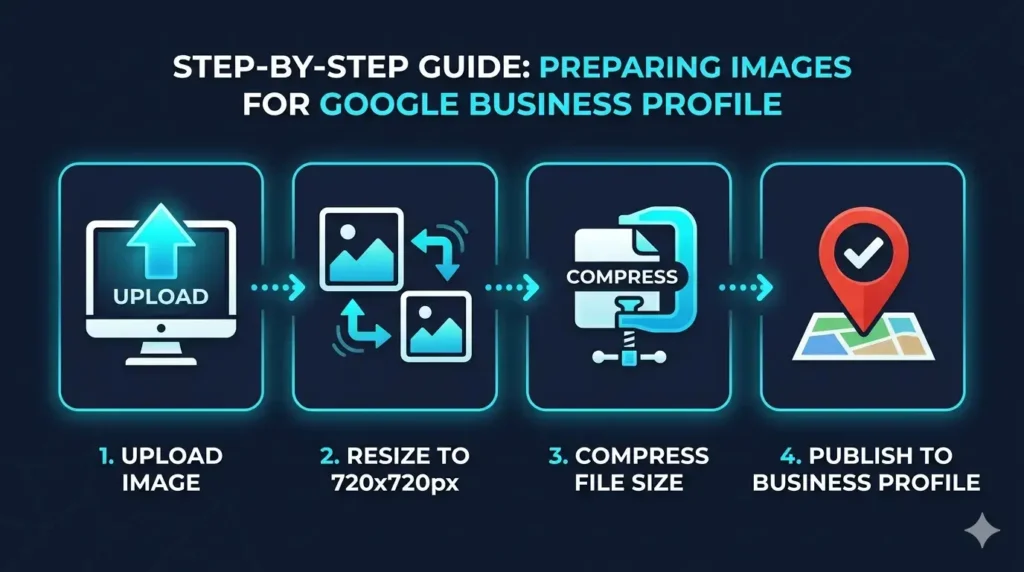
Step 1: Go to QuickImage GMB Image Optimizer
Step 2: Click “Upload Image” and select your photo from your device
Step 3: The tool automatically resizes your image to 720x720px and compresses it for optimal file size
Step 4: Click “Download” to save your optimized image
Step 5: Upload the optimized image to your Google Business Profile
That is it. The entire process takes less than 30 seconds. No account required, no watermarks, completely free.
Method 2: Resize Using Google Photos (Free)
If you prefer to use Google’s own tools:
1. Open Google Photos on your phone or desktop
2. Select the image you want to resize
3. Tap Edit → Crop
4. Select Square (1:1) aspect ratio
5. Adjust the crop area to include the most important part of your photo
6. Save and download
7. Upload to your Google Business Profile
Limitation: Google Photos does not let you set an exact pixel size. You cannot guarantee the output will be exactly 720x720px.
Method 3: Resize Using Canva (Free Plan Available)
1. Go to canva.com and create a free account
2. Click Create a design → Custom size
3. Enter 720 x 720 px and click Create new design
4. Upload your original photo and fit it to the canvas
5. Download as JPG
6. Upload to Google Business Profile
Limitation: Canva requires an account for sign-up and an internet connection. Your image is uploaded to their servers.
What Types of Images Should You Upload to Google Business Profile?
Google allows several categories of photos. Here is what to upload for the best SEO impact:
Profile Photo: Your logo or brand image. This appears in search results next to your business name. Size: 720x720px (square).
Cover Photo: The main image that represents your business. Choose something that clearly shows your services or location. Size: 1080x608px (landscape), but also prepare a 720x720px version.
Business Photos: Photos of your storefront, interior, team, products, and services. Upload at least 10 high-quality photos. Each should be 720x720px or larger.
Service/Product Photos: If you sell products or offer specific services, upload dedicated photos for each. These help Google’s Vision AI categorize your business correctly.
Important: Always upload real photos of your actual business. Stock photos perform significantly worse than authentic images for local SEO.
Common GMB Image Mistakes That Hurt Your Rankings
Avoid these mistakes that most business owners make while resize images for Google Business Profile
Uploading portrait or landscape images without cropping. A tall or wide image gets auto-cropped by Google, often cutting out the most important part of your photo.
Using PNG files for photos. PNG is great for logos and graphics, but for photographs, JPG files are smaller and load faster. Use JPG for all your business photos.
Ignoring EXIF metadata. Your phone camera embeds GPS coordinates, device information, and other private data into every photo. This metadata also increases file size unnecessarily. Strip it before uploading.
Uploading only one photo. Google rewards profiles with more photos. Businesses with 10+ photos receive significantly more direction requests and website clicks than those with fewer.
Using low-resolution screenshots. Screenshots from your website or social media are compressed and of low quality. Always use original, high-resolution photos.
How to Upload Images to Google Business Profile
Once your images are resized and optimized:
1. Go to business.google.com and sign in
2. Select your business profile
3. Click Photos in the left menu
4. Click the blue plus (+) button
5. Select the photo category (Profile, Cover, or By Owner)
6. Upload your optimized 720x720px image
7. Click Post photo
Google typically processes and displays new photos within a few minutes.
Frequently Asked Questions
What is the best image size for Google Business Profile?
The recommended size is 720×720 pixels in JPG format. This is the official Google standard and ensures your photos display clearly across all devices without distortion.
Can I upload a rectangular image to Google Business Profile?
Yes, but Google will auto-crop it to a square. To control exactly what appears, resize your image to 720x720px before uploading using our free GMB image optimizer.
Does image quality affect Google Business Profile rankings?
Yes. Google’s Vision AI analyzes your images to understand your business. High-quality, properly sized images help Google categorize your services accurately, which improves local search visibility.
Is it safe to use an online image resizer?
With QuickImage, yes. Our tool processes images entirely within your browser — your photo never gets uploaded to any server. This means zero privacy risk and instant results.
How many photos should I have on my Google Business Profile?
Google recommends at least 10 photos. Profiles with more high-quality photos consistently rank higher and receive more customer actions like calls, website visits, and direction requests.
What file format should I use for GMB photos?
Use JPG for all photographs. JPG files are smaller than PNG, load faster, and display better on Google Maps and in search results.